Project Export
Project Export is the step to create a package that contains all the files needed to play your game, excluding the files that are only needed for development.
The data directories of your project contain a lot of files that are only needed during development. Additionally, they are usually stored in various locations, for example the Base directory, which is needed by all games, is located in the SDK folder, whereas your project files probably are located somewhere entirely different. Finally, you also need various binaries (EXE and DLL on Windows) to launch your game, which are again located somewhere different.
The project export feature consolidates all these files into a single directory, so that it is easy to distribute.
Export Project Dialog
To get started with generating a self-contained package of your game, use the project export dialog that you find in the editor under Project > Export Project....
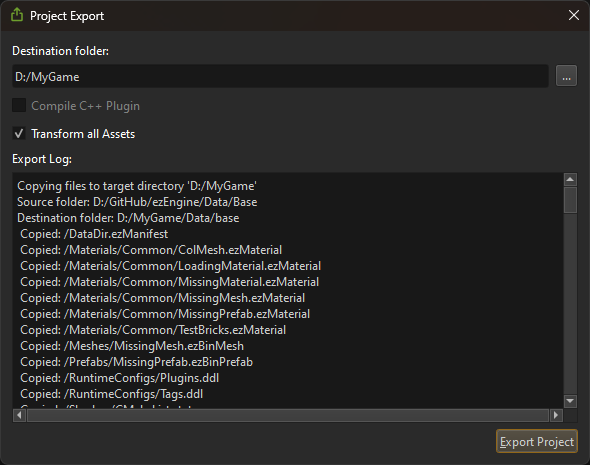
Select an output folder and click Export Project.
The options are:
- Compile C++ Plugin builds the project's C++ code before exporting.
- Transform all Assets makes sure that the asset outputs are up-to-date.
- Run Post-Export Script runs the project's post-export script, if available.
In case there were any issues, they are written to the log widget.
Launch Scripts
If the project has its own game executable, which the C++ project generation sets up, a single .bat file for launching that executable is created. The executable is also added to the exported binaries automatically, and ezPlayer is not exported in this case.
Otherwise the export generates one .bat file for every scene in your project. These scripts launch the respective scene with ezPlayer.
Post-Export Script
To run custom logic on the exported files, for example to remove the launch scripts or to create an archive, add a script named PostExport to the Editor folder of your project. Files in that folder aren't exported, so the script doesn't end up in your package.
| Platform | Supported scripts |
|---|---|
| Windows | PostExport.py, PostExport.ps1 |
| Other | PostExport.py, PostExport.ps1, PostExport.sh |
You should really only have one export script for all platforms, so a single Python or PowerShell script is recommended to handle all platforms.
The script runs after all files were exported, with the output folder as its working directory. It receives these environment variables:
EZ_EXPORT_DIRis the output folder.EZ_PROJECT_DIRis the project folder.EZ_ASSET_PROFILEis the name of the exported asset profile.
The export waits for the script and it can't be canceled. Everything the script prints is added to the export log, once it has finished, with anything written to stderr counting as a warning. If the script returns a non-zero exit code, the export counts as failed, but the exported files stay in the output folder.
For an example, see Editor/PostExport.py in the Crazy Ball sample. It keeps only the launch script for the main scene and renames it to Play Crazy Ball.bat.
Configuring Project Export
When you export your project for the first time, these files are added to your project directory:
ProjectBinaries.ezExportFilterProjectData.ezExportFilter
The first file is used to determine which binaries should get included in the package. The second file is used to determine which data files should get included.
By default these files #include predefined export filters:
Data\Base\CommonData.ezExportFilterData\Base\CommonBinaries.ezExportFilter
These files set up the rules for typical use-cases. You can extend them in your project config files, or you can remove the #include and fully define your own rules.
The ezExportFilter files contain two sections: [EXCLUDE] and [INCLUDE]. Without any filter, all files are included in the output package.
To exclude certain files or file types, a pattern has to be added to the [EXCLUDE] section. However, sometimes you want to exclude all files of a certain type (e.g. exe) but include a single one regardless (for example your game.exe). In this case, add it to the [INCLUDE] section, to override the exclusion filter.
Each line in the file represents one file path pattern:
- If it starts with a
*, it matches paths that end with this pattern. - If it ends with a
*, it matches paths that start with this pattern. - If it starts and ends with a
*, it matches paths that contain this pattern. - At any other location,
*is not allowed. - All paths are considered to be relative to their respective data directory.
Note:
For inspiration how to use these path patterns, see the files
Data\Base\CommonData.ezExportFilterandData\Base\CommonBinaries.ezExportFilter.
Limitations
- Which DLLs are exported is not determined by analyzing what the game actually uses. The core engine DLLs listed in
CommonBinaries.ezExportFilterare always included, plus the DLLs of the engine plugins that are selected for the project, along with the dependencies their plugin bundles declare. Edit yourProjectBinaries.ezExportFilterto add or remove files. - The exported package contains no shader cache, so shaders are compiled on the machine of every player, during the first launch.